
Key Takeaways
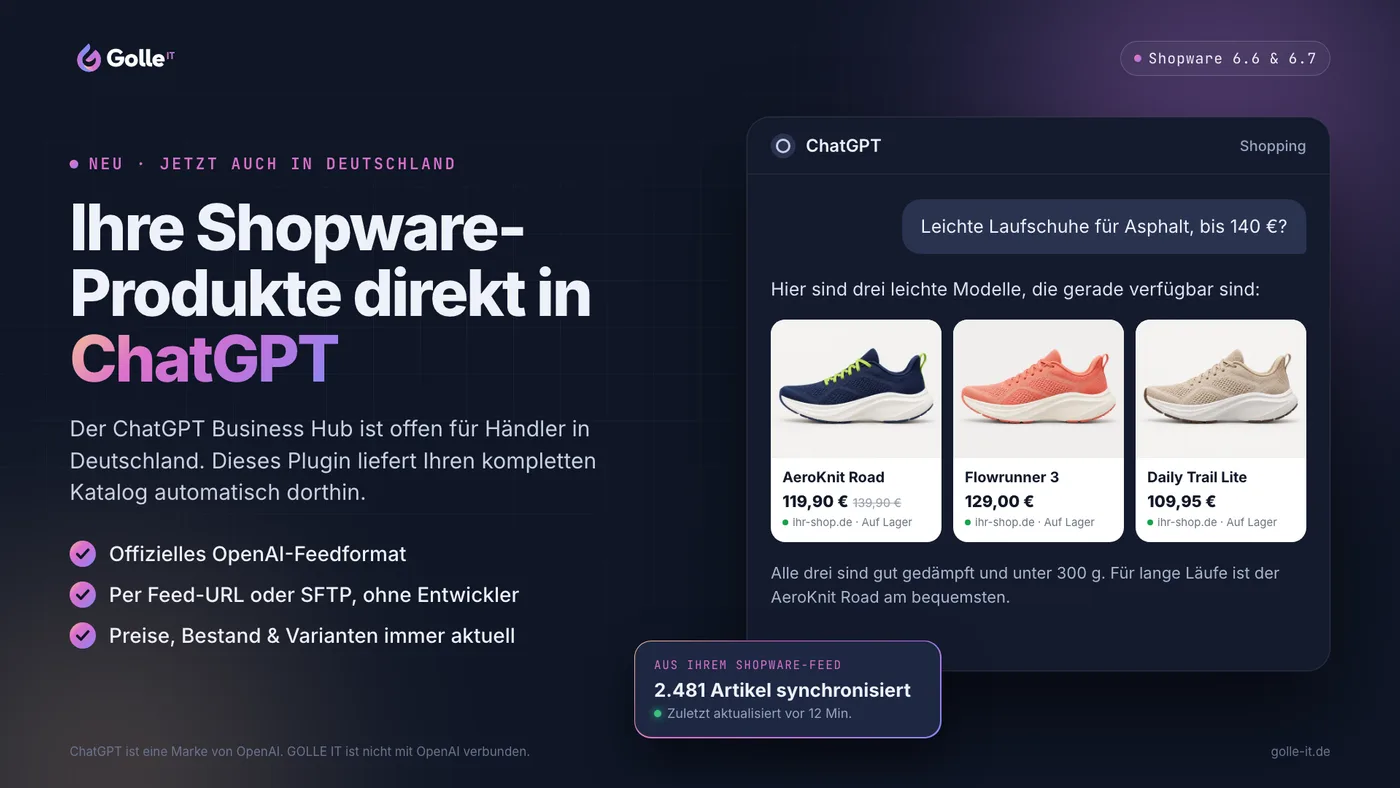
- OpenAI has launched the ChatGPT Business Hub, now also available to merchants in Germany.
- Verified merchants can upload a product feed containing prices and availability.
- Shopify has a direct integration, but Shopware does not. Our plugin closes that gap.
- Setup takes just 5 steps, requires no developer, and usually takes less than an hour.
More and more people are no longer asking Google, but ChatGPT, which running shoes, coffee machine, or spare part to buy. Until now, merchants had almost no influence over what data ChatGPT knew about their products. That's changing now: with Businesses in ChatGPT, OpenAI has launched the ChatGPT Business Hub, and it's open to merchants in Germany too.
We've updated our OpenAI Merchant Feed plugin for Shopware 6 to support this. In this post, we'll show you what's changed and how to get your Shopware catalog into ChatGPT in just a few steps.
What's New?
On November 10, 2026, OpenAI launched "Businesses in ChatGPT" in beta. At its core is the Business Hub:
- Companies can claim and verify their profile in ChatGPT and manage their own information.
- Verified merchants can upload a product feed with prices and availability.
- Under "Insights," you can see how often your business is mentioned in ChatGPT, how many profile views and website clicks it generates, and which topics users discover it through.
The Business Hub is available anywhere ChatGPT is available, including Germany. Only the new "Business Agents," which let customers chat directly with a shop inside ChatGPT, are currently limited to the US.
What Does This Mean for Shopware Merchants?
Shopify merchants can connect their store directly to the Business Hub. No such integration exists for Shopware. Instead, the Business Hub expects a product feed in OpenAI's official format, which needs to be updated regularly.
That's exactly what our plugin, "OpenAI / ChatGPT Merchant Feed Generator," handles for you:
- It generates your entire catalog in OpenAI's official format, including all required fields.
- It makes the feed available per sales channel under a fixed URL that you simply enter into the Business Hub. Alternatively, it can upload the feed via SFTP.
- It automatically updates the feed every 1 to 24 hours, so prices, stock levels, and variants stay accurate in ChatGPT.
Checkout still happens on your own shop: when a customer clicks on your product in ChatGPT, they land on your product page.
Step-by-Step Guide: Getting Into ChatGPT in 5 Steps
1. Install the Plugin
Install the plugin from the Shopware Store. It works with Shopware 6.6 and 6.7. Note: the message queue and scheduled tasks need to be running, which is already the case for most shops.
2. Enter Merchant Details and Attributes
In the plugin settings, enter the following for each sales channel:
- Merchant name and shop URL
- Links to your terms of service, privacy policy, and return policy, plus your return period
- The mapping of your product attributes to color, size, material, and gender
- Optionally, target countries (if left blank, the plugin uses the sales channel's default country)
3. Generate and Review the Feed
Click "Generate feed now" in the feed status section. You'll then see how many products made it into the feed and which ones were skipped and why, for example due to missing brand information or images. This is the best opportunity to fix any data gaps.
4. Verify and Add the Feed in the ChatGPT Business Hub
Open the ChatGPT Business Hub, claim your business, and complete the verification process. Then add a product feed:
- Choose hosted URL as the transfer method.
- Copy the "Feed URL for Business Hub" from the plugin and paste it in.
- Select the countries and currencies you sell in.
If you prefer SFTP, enter the credentials from the Business Hub into the plugin instead and click "Test connection."
5. Verify the Result
Check in the Business Hub that the upload completes without errors. From this point on, the plugin updates the feed automatically, no further action needed on your part.
Tips: Helping ChatGPT Understand Your Products Better
OpenAI doesn't guarantee placement. However, a complete, up-to-date feed improves the data foundation ChatGPT relies on. Here's what's worth focusing on:
- Clear, informative descriptions: factual and specific, including material, dimensions, and intended use rather than marketing buzzwords.
- Maintain brand and GTIN data: products without a brand will be skipped. Valid EANs help with accurate matching.
- Good images: at least one main image, ideally with additional views.
- Set up variants correctly: use color and size as attributes so ChatGPT recognizes them as a single product group.
- Use sale prices: the plugin automatically transfers your discounted price as the offer price.
Bonus: ChatGPT Ads
If you also want to run product ads in ChatGPT, simply add an API key from your ChatGPT Ads account to the plugin. The plugin then automatically sets up the feed and SFTP access and displays OpenAI's upload results directly in the Shopware admin.
Frequently Asked Questions
Do I need a developer?
No. Installation, configuration, and entering the feed URL in the Business Hub typically take less than an hour.
Which Shopware versions are supported?
Shopware 6.6 and 6.7.
Is it guaranteed that my products will appear in ChatGPT?
No. OpenAI decides independently which products appear in responses. However, without a feed, ChatGPT has no way of knowing your current prices and availability at all.
What happens to my data?
The feed only contains public product data that's already visible in your shop. No customer data is transmitted.
Get Started Now
The plugin is available in the Shopware Store with a free trial month. Need help with setup, or want to get your product data ready for ChatGPT? Get in touch with us, we're happy to help.
Last updated: November 18, 2026. Businesses in ChatGPT is still in beta, and details may change. We'll update this post as new developments occur.
ChatGPT and OpenAI are trademarks of OpenAI, Inc. GOLLE IT is not affiliated with OpenAI.