
Many problems with Shopware itself or third-party plugins can be traced back to the cache. The cache (pronounced like “cash”) is a kind of temporary storage that holds front-end and back-end themes, as well as some internal system settings.
If the cache is not cleared after changes to the design or with certain settings, these are partially not adopted in the frontend. If the cache is not cleared for a longer period of time, this can lead to problems in several places. But how do you clear the cache in the first place?
The simple Shopware cache can generally be quickly emptied via the Settings -> Cache / Performance -> Shopcache button. However, the complete caches are not cleared here.
In a hidden menu, there are more options to actually clear all caches and perform some other performance settings.
In the following screenshots you can see how it works:
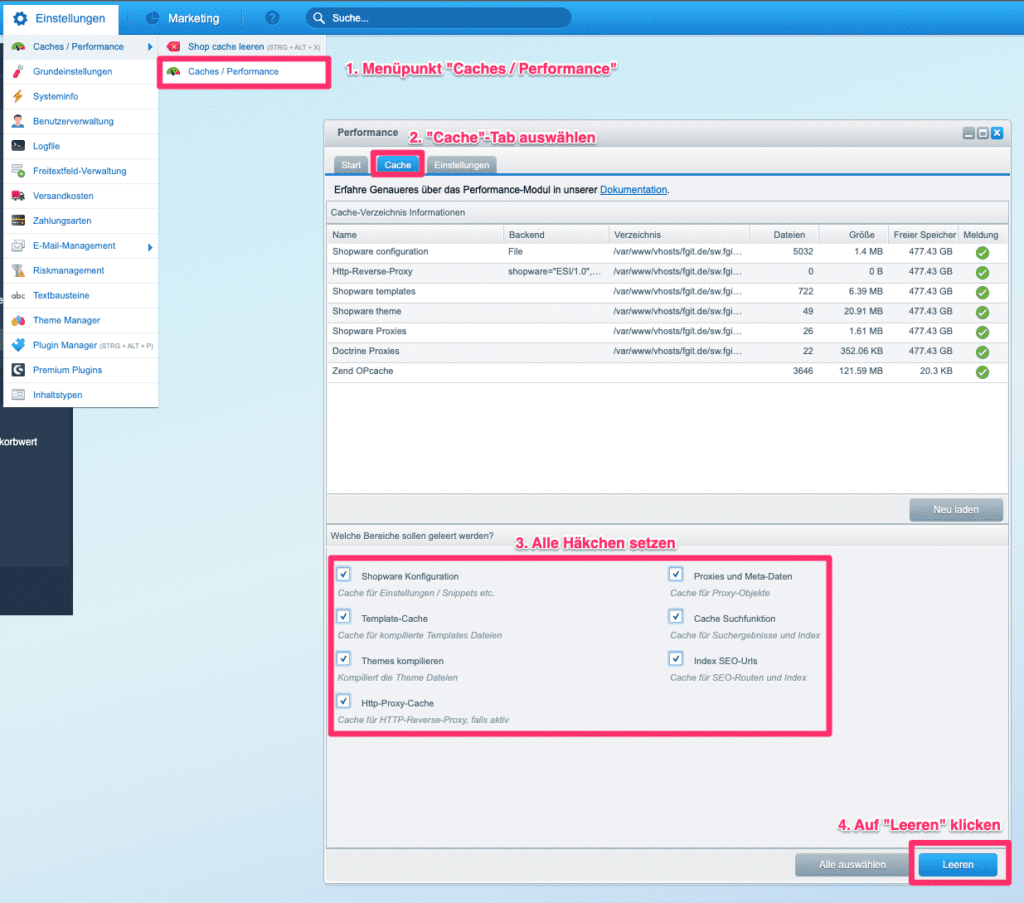
But beware: when you empty the cache, all the changes you have made will be applied directly. If, for example, a syntax error has crept into a template, it can only take effect after the cache has been cleared. Therefore, check the frontend for correct display directly after emptying.
When all else fails
There are a few scenarios where the path shown above does not work, or works only partially. An example would be when the Shopware internal cache directory has become so large that it can no longer be emptied via the Shopware backend. This can happen, for example, if the APC(u) cache is not available on your server and Shopware can therefore only use the file cache.
In this case, it is a good idea to empty the Shopware cache directory via (S)FTP or SSH access.
To do this, please change to the main directory of your store and then to the subdirectory var/cache. Here you should find a folder named production_2022.....
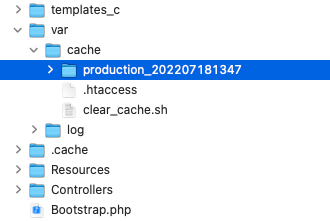
To really empty the file cache completely once, you can first rename the folder production_2022.... as you wish. Shopware then creates a new cache directory with the original name a short time later.
You can then delete the renamed folder. This process can take a while (depending on the size).
Important: The “cache” folder and the directories above it must not be deleted under any circumstances!
Note: It is conceivable that the production_2022... folder at your site has a combination of numbers. This is completely normal, as the folder name changes with every Shopware update.
Need help correcting performance issues in your Shopware store? Take a look at our E-commerce offer